

New to Equos?
Create your account and organization before building your first character.
Open the character editor
From the Characters page, click the + button in the top-right corner—or go directly to studio.equos.ai/characters/new.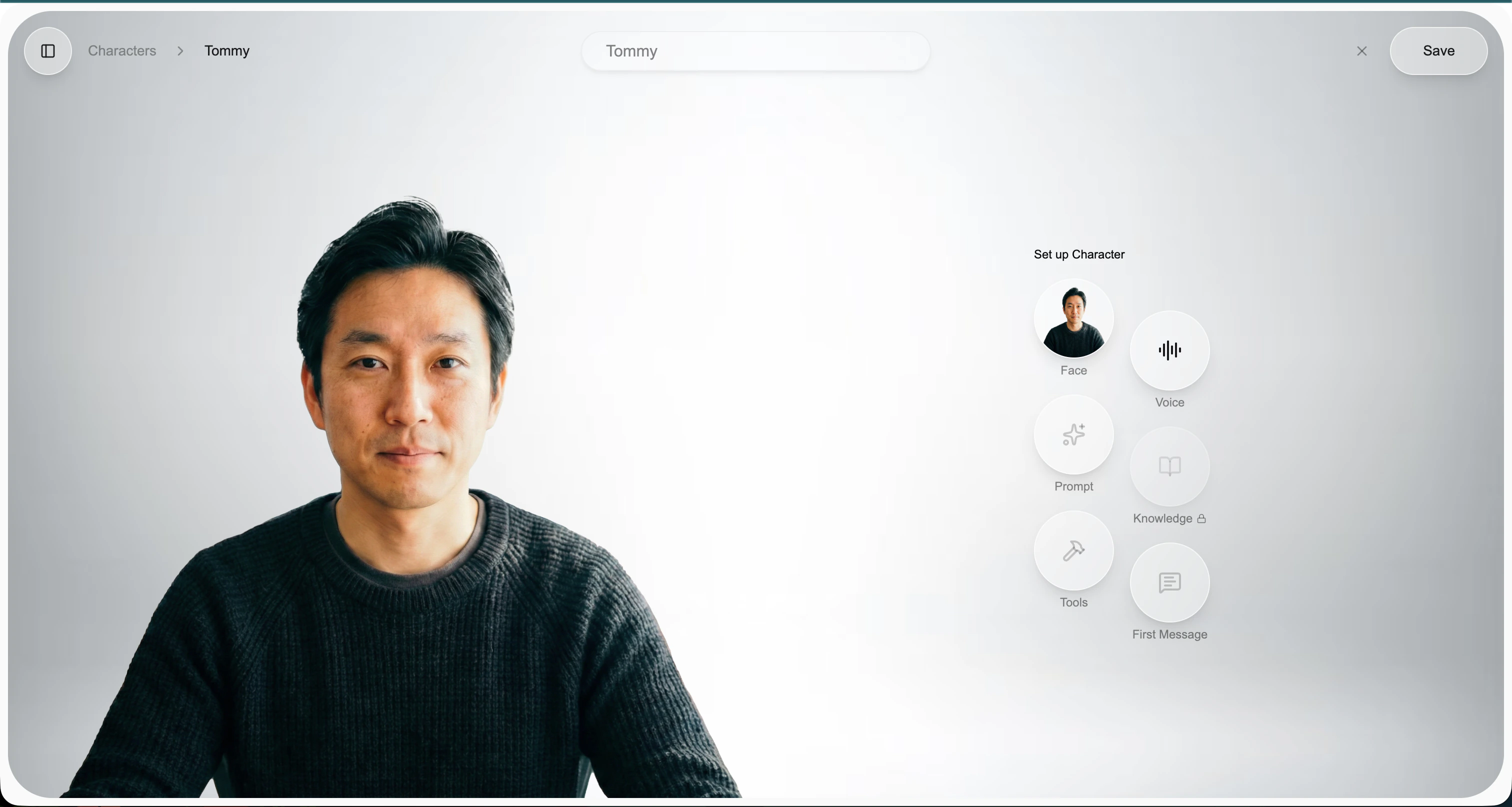
Editing an existing character uses the same flow—just open the character and click the pen button in the top-right to enter edit mode.
Face
The Face is the visual identity of your character.- Upload a single image—photo, painting, illustration, or AI-generated.
- A clear, front-facing portrait works best; the face should be well-lit and unobstructed.
- Equos handles lip-sync and facial expressions automatically at runtime.
Voice
The Voice is how your character sounds.- Pick a voice from the catalog of built-in options.
- Preview each voice before selecting.
- You can change the voice at any time without affecting anything else.
Prompt
The Prompt (also called the Brain) defines your character’s personality, role, and behavior. Use it to specify:- Identity — name, background, role (e.g., “You are Tommy, a friendly product coach…”)
- Tone — formal, casual, playful, empathetic
- Scope — what the character should talk about and, just as importantly, what it shouldn’t
- Style — short replies vs. detailed answers, use of humor, vocabulary level
Knowledge
Attach a Knowledge Base so your character can ground its answers in your own content (RAG).- Select an existing knowledge base or create a new one.
- The character will automatically search it during conversations to find relevant passages.
- Great for product docs, FAQs, internal SOPs, or any domain-specific content.
Create a knowledge base
Learn how to build and populate a knowledge base for your character.
Tools
Tools let your character take actions during a conversation, not just talk. Today, tools allow the character to search the internet in real time—so it can answer questions about recent events, look up live information, or fetch data it otherwise wouldn’t know about.First Message
The First Message is the opening line your character speaks the moment a conversation starts.- Sets the tone immediately
- Introduces the character and what it can help with
- Invites the user to respond
Save and chat
Once each block is configured, click Save in the top-right. Your character is live. Head to the character page and click Start Chatting to test it end to end.Chat with your character
Start a live conversation and try out the mic, camera, and screen-share controls.