> ## Documentation Index
> Fetch the complete documentation index at: https://docs.equos.ai/llms.txt
> Use this file to discover all available pages before exploring further.
# Create a Character
> Build a character from scratch—pick a face, a voice, and define how it thinks, speaks, and acts.
A **character** is a complete interactive AI persona made of six building blocks: **Face**, **Voice**, **Prompt**, **Knowledge**, **Tools**, and **First Message**. This guide walks you through setting up each one.
Create your account and organization before building your first character.
***
## Open the character editor
From the [Characters page](https://studio.equos.ai/characters), click the **+** button in the top-right corner—or go directly to [studio.equos.ai/characters/new](https://studio.equos.ai/characters/new).
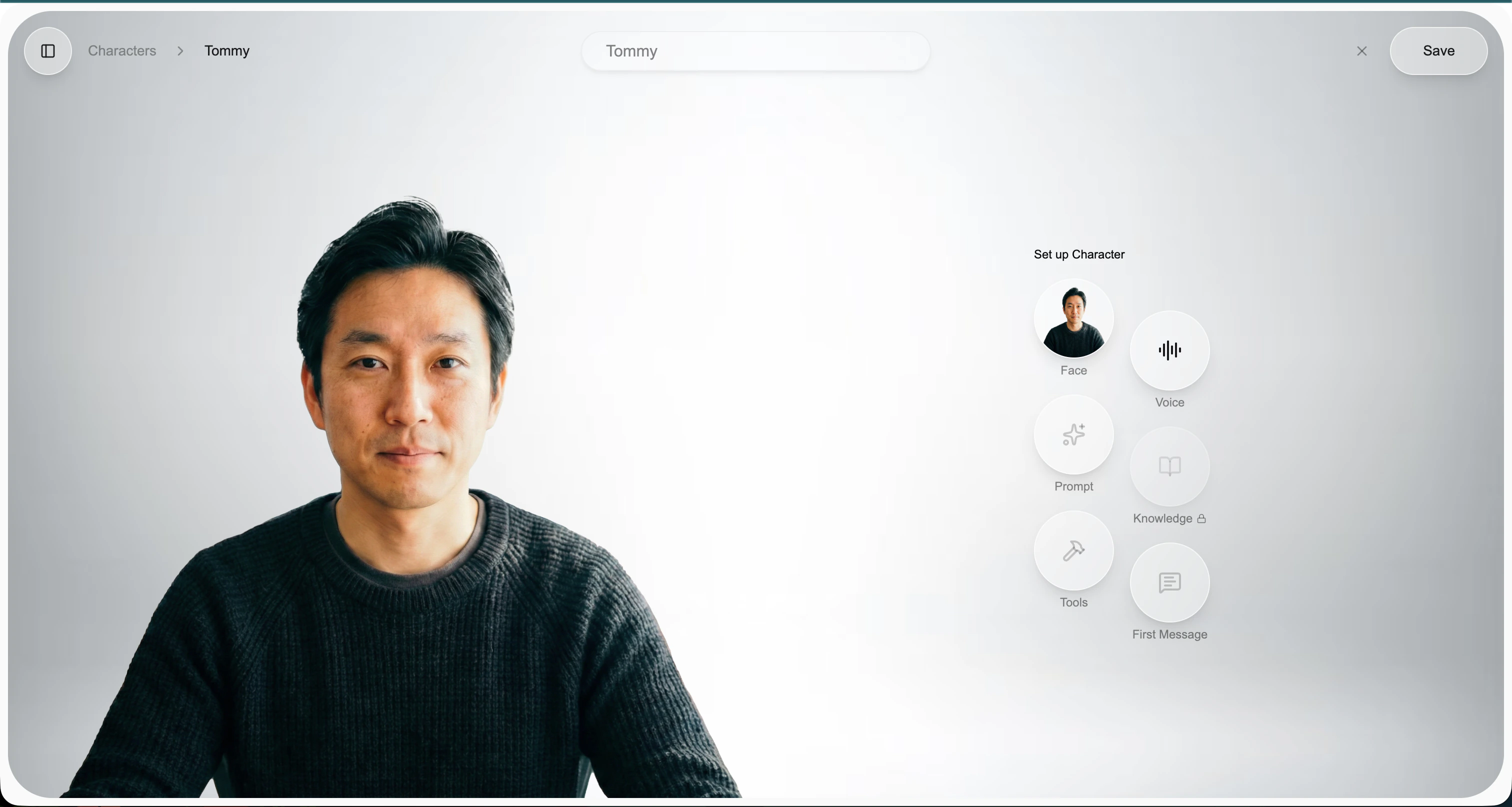 Give your character a name at the top, then configure each building block on the right-hand panel.
Editing an existing character uses the same flow—just open the character and click the **pen** button in the top-right to enter edit mode.
***
## Face
The **Face** is the visual identity of your character.
* Upload a single image—photo, painting, illustration, or AI-generated.
* A clear, front-facing portrait works best; the face should be well-lit and unobstructed.
* Equos handles lip-sync and facial expressions automatically at runtime.
You only need one image. No multi-angle shoots or training required.
***
## Voice
The **Voice** is how your character sounds.
* Pick a voice from the catalog of built-in options.
* Preview each voice before selecting.
* You can change the voice at any time without affecting anything else.
***
## Prompt
The **Prompt** (also called the **Brain**) defines your character's personality, role, and behavior.
Use it to specify:
* **Identity** — name, background, role (e.g., "You are Tommy, a friendly product coach…")
* **Tone** — formal, casual, playful, empathetic
* **Scope** — what the character should talk about and, just as importantly, what it shouldn't
* **Style** — short replies vs. detailed answers, use of humor, vocabulary level
Keep prompts concrete. "Answer in 1–2 sentences and always ask a follow-up question" beats "be conversational."
***
## Knowledge
Attach a **Knowledge Base** so your character can ground its answers in your own content (RAG).
* Select an existing knowledge base or create a new one.
* The character will automatically search it during conversations to find relevant passages.
* Great for product docs, FAQs, internal SOPs, or any domain-specific content.
Learn how to build and populate a knowledge base for your character.
***
## Tools
**Tools** let your character take actions during a conversation, not just talk.
Today, tools allow the character to **search the internet** in real time—so it can answer questions about recent events, look up live information, or fetch data it otherwise wouldn't know about.
Enable tools when your character needs fresh information that isn't in its prompt or knowledge base.
***
## First Message
The **First Message** is the opening line your character speaks the moment a conversation starts.
* Sets the tone immediately
* Introduces the character and what it can help with
* Invites the user to respond
Example: *"Hey, I'm Tommy—your product coach. What are you working on today?"*
***
## Save and chat
Once each block is configured, click **Save** in the top-right. Your character is live.
Head to the character page and click **Start Chatting** to test it end to end.
Start a live conversation and try out the mic, camera, and screen-share controls.
Give your character a name at the top, then configure each building block on the right-hand panel.
Editing an existing character uses the same flow—just open the character and click the **pen** button in the top-right to enter edit mode.
***
## Face
The **Face** is the visual identity of your character.
* Upload a single image—photo, painting, illustration, or AI-generated.
* A clear, front-facing portrait works best; the face should be well-lit and unobstructed.
* Equos handles lip-sync and facial expressions automatically at runtime.
You only need one image. No multi-angle shoots or training required.
***
## Voice
The **Voice** is how your character sounds.
* Pick a voice from the catalog of built-in options.
* Preview each voice before selecting.
* You can change the voice at any time without affecting anything else.
***
## Prompt
The **Prompt** (also called the **Brain**) defines your character's personality, role, and behavior.
Use it to specify:
* **Identity** — name, background, role (e.g., "You are Tommy, a friendly product coach…")
* **Tone** — formal, casual, playful, empathetic
* **Scope** — what the character should talk about and, just as importantly, what it shouldn't
* **Style** — short replies vs. detailed answers, use of humor, vocabulary level
Keep prompts concrete. "Answer in 1–2 sentences and always ask a follow-up question" beats "be conversational."
***
## Knowledge
Attach a **Knowledge Base** so your character can ground its answers in your own content (RAG).
* Select an existing knowledge base or create a new one.
* The character will automatically search it during conversations to find relevant passages.
* Great for product docs, FAQs, internal SOPs, or any domain-specific content.
Learn how to build and populate a knowledge base for your character.
***
## Tools
**Tools** let your character take actions during a conversation, not just talk.
Today, tools allow the character to **search the internet** in real time—so it can answer questions about recent events, look up live information, or fetch data it otherwise wouldn't know about.
Enable tools when your character needs fresh information that isn't in its prompt or knowledge base.
***
## First Message
The **First Message** is the opening line your character speaks the moment a conversation starts.
* Sets the tone immediately
* Introduces the character and what it can help with
* Invites the user to respond
Example: *"Hey, I'm Tommy—your product coach. What are you working on today?"*
***
## Save and chat
Once each block is configured, click **Save** in the top-right. Your character is live.
Head to the character page and click **Start Chatting** to test it end to end.
Start a live conversation and try out the mic, camera, and screen-share controls.